Home Office Router Security Checklist for Remote Employees
BizShield Pro Editorial
Updated November 1, 2026
Quick Answer
Secure a home office router by changing the default admin password, updating firmware, using WPA2 or WPA3 with a long passphrase, turning off WPS and remote administration, setting up a separate guest network for visitors and smart devices, and keeping work laptops on the main trusted network with their own firewall on.
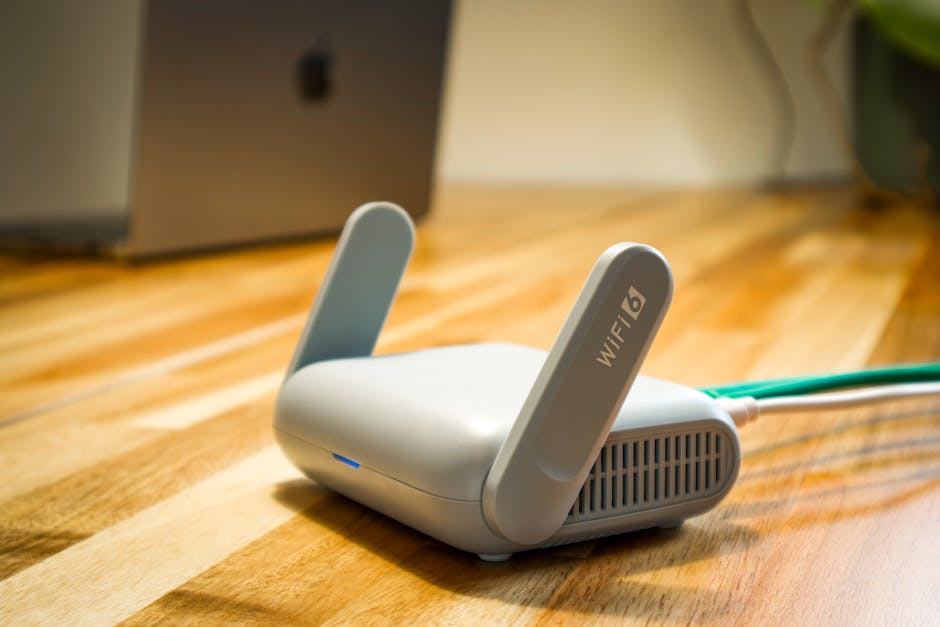
Twelve router and Wi-Fi settings that protect work devices at home, with plain-English explanations.
Why the router matters more than people think
The router is the front door of every home network. It decides which devices can talk to each other, what traffic is allowed in from the internet and how your Wi-Fi is protected. For an employee working from the kitchen table, it sits between a company laptop and everything else out there, including smart speakers, game consoles, children's tablets and neighbours who might be curious about the Wi-Fi.
Routers are also rarely maintained. They are installed once, left in a cupboard and forgotten for years. Attackers know this, and they scan for devices with default passwords or old firmware. A few minutes of attention can remove most of the easy opportunities.
You do not need to be an IT specialist to work through this list. Each item takes a couple of minutes, and the router's admin page or manufacturer's help site will show you where each setting lives. Share the list with remote employees as a one-page guide, and consider offering to help anyone who is unsure.
Admin access: the first four checks
Start with who can change the router's settings, because everything else depends on it.
- Change the default admin username and password to something unique, stored in a password manager
- Log in over the home network only, and make sure remote administration from the internet is switched off
- Update the router firmware, and turn on automatic updates if available
- Check the label or manufacturer site to confirm the model still receives security updates, and replace it if not
Wi-Fi settings that count
Use WPA3 if every device supports it, otherwise WPA2 with AES. Avoid the older WEP and plain WPA modes, which can be broken quickly. Choose a Wi-Fi passphrase that is long and not based on the family name, address or phone number, and consider a short sentence of unrelated words.
Turn off WPS, since the PIN method has known weaknesses and is rarely needed. Hiding the network name does not add meaningful protection, so do not rely on it. Give the network a neutral name that does not reveal the router brand or your surname, because that information helps an attacker pick the right exploit or guess the passphrase.
If the router has a feature for guests, use it. A guest network keeps visitors, smart televisions and cheap internet-connected gadgets away from the laptop used for work. Many routers also allow a separate network for such devices. This kind of separation limits the damage if one of them is compromised.
Other settings worth reviewing
Beyond the basics, a short review of the rest of the settings page can reveal features you did not know were on.
- Disable UPnP unless you have a specific need, since it can open ports automatically
- Turn off any remote support or cloud management features you do not use
- Review port forwarding rules and delete ones you do not recognise
- Check the list of connected devices and investigate anything unfamiliar
- Enable the router firewall, which is usually on by default
Protect the laptop as well
Router settings are one layer. The work device should still protect itself, because it will also be used on other networks. Keep the operating system firewall on, install updates, use full-disk encryption and require a screen lock. Set the home network to private on Windows only when you trust it, and avoid file sharing on networks you do not control.
Remind employees that company data should not be saved on family devices, and that family members should not use the work laptop. Even innocent use, such as a quick game or a download for school, creates risk on a machine that holds business information.
When to use a VPN, and when not to
A business VPN or zero-trust access tool encrypts traffic between the device and company systems, and can enforce company access rules, so it is valuable for remote teams. It does not repair a router that has been compromised or an infected laptop, though. Think of it as an extra layer, not a replacement for the checks above.
If your team connects to company systems using only a username and password over the internet, adding multi-factor authentication and a managed access tool is usually a better investment than extra router tweaks. Discuss options with your IT provider and check each vendor's current pricing and features.
Signs your router may have a problem
Even a well-configured router can be compromised, so know the warning signs. Web pages that redirect unexpectedly, new unfamiliar devices in the connected list, settings that you did not change, DNS servers you do not recognise or a sudden drop in speed can all point to trouble.
If you suspect a problem, disconnect the router from the internet, perform a factory reset, update the firmware before reconnecting and reconfigure it with a new admin password and Wi-Fi passphrase. Then change passwords for important accounts from a clean device, and tell your IT contact so they can check the work laptop. Replacing an old model is often cheaper and safer than trying to rescue it.
Make it a habit
Put a reminder in the calendar every quarter: check for firmware updates, review connected devices and confirm that the guest network is still separate. If an employee moves house or changes internet provider, repeat the whole checklist on the new equipment. A short annual confirmation from each remote worker that they have completed the list creates a record and keeps security on everyone's mind without needing a heavy process.
Frequently Asked Questions
Is a home router really a business risk?
Yes. A compromised router can redirect traffic, expose devices on the network and weaken the protection of anything connected, including a work laptop. Remote employees often depend on it entirely.
Should employees use the router the internet provider supplied?
It can be fine if it is kept updated and configured properly. Check whether your provider pushes automatic updates, and replace routers that are no longer supported.
What is WPS and why turn it off?
Wi-Fi Protected Setup lets devices join with a button or short PIN. Some implementations have weaknesses, and most people never need it once devices are connected.
Does a VPN replace router security?
No. A VPN protects traffic between a device and a destination, but a poorly secured router and other home devices still matter. Use both.
How often should router firmware be updated?
Check at least every few months, or enable automatic updates if the router supports them. Update promptly when the manufacturer announces a security fix.
Tools We Recommend
Advertisement
Sponsored: today's featured offer →Advertisement